How to Open a GCASH Virtual US Account
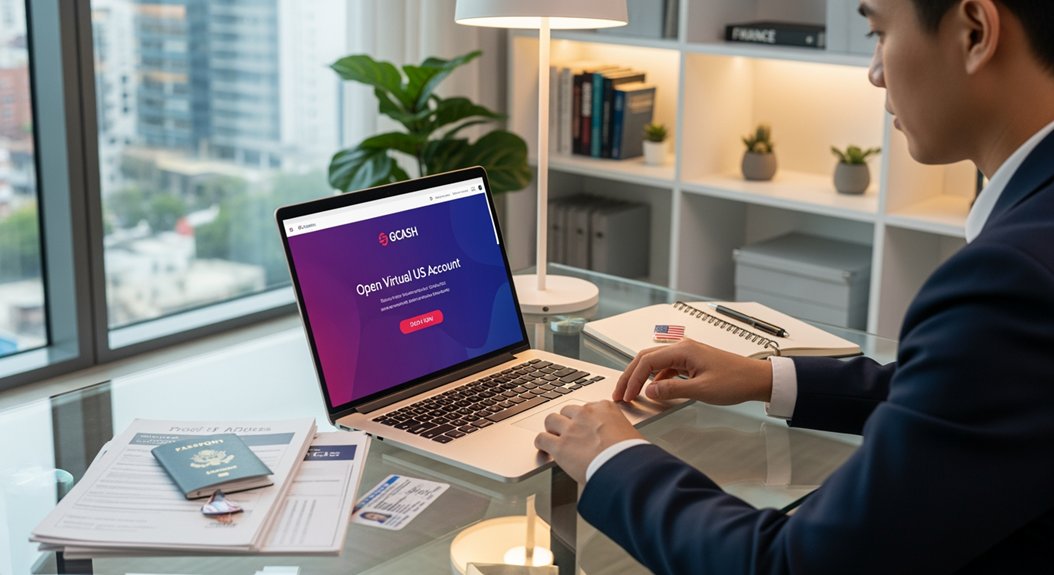
First, make sure you’re a Filipino resident 18 + with a fully verified GCash profile and a government ID. Open the GCash app, tap “View All” if you don’t see the US Accounts button, then select US Account and hit Continue. Fill in your name, birthdate, address and phone, tick the boxes confirming you’re not a US citizen, and upload a clear front‑and‑back photo of your ID plus a selfie. After you submit, you’ll get a push notification; approval usually happens within minutes, and you can copy your account details instantly with the I icon. If you keep going, you’ll find out more about fees and usage.
Highlights
- Verify your GCash account, be a Philippine resident ≥ 18, and have a valid government ID uploaded.
- Open the GCash app, tap “View All” if needed, select “US Account,” then tap “Continue.”
- Fill personal details, certify you’re not a US citizen, and agree to the terms before tapping “Let’s Go.”
- Submit a clear front‑and‑back photo of your ID and a selfie for identity verification; approval occurs within minutes.
- After approval, copy your US virtual account details via the “I” icon and start using the wallet instantly.
Check Eligibility for a GCash US Virtual Account
Can you meet the basics for a GCash US Virtual Account? First, run the eligibility checks: you must be a fully verified GCash user, a Philippine resident aged 18 or older, and have a complete profile with at least one valid government‑issued ID. I’ve seen people skip the ID step and get stuck, so double‑check it. Only one US Virtual Account can link to your GCash, so if you already have one, you’ll need to remove it before applying. After confirming the basics, open the app, tap View All, and locate US Accounts. Your status will pop up in the inbox and as push notifications once you submit. Keep your login safe; strong passwords and two‑factor authentication boost account security and prevent hassle later. Additionally, understanding how Kalilangan Festival’s community‑driven awareness mirrors the importance of documented identity and cultural heritage can inspire you to maintain a secure, verifiable profile in digital services like GCash verified identity.
Access the US Account Feature in the GCash App
So, you’ve opened the GCash app and logged in—great start. To get US access, tap View All if the US Accounts button isn’t immediately visible, then select US account. In that section, hit Continue, review the details, and use the pencil icon to fix any outdated info.
Scroll down until you see the verification tick boxes, tick them, and certify you’re not a US citizen—this checks your US eligibility. After that, tap I Agree, double‑check your employment data, and then press Let’s Go.
You’ll be prompted to submit ID: capture a clear front and back photo of your driver’s license, then take a selfie for verification. Follow each prompt, and you’ll be set to move forward. This process supports access to specialized services and features designed for international use, aligning with the broader goal of flexible financial tools for global workflows US access features.
Start the Application Process
Once you’ve opened the GCash app and tapped Continue, you’ll see the terms screen—just skim them, then hit Proceed. Next, the form asks for your name, birthdate, address, and phone number; fill it out accurately, because any typo can stall the process. You’ll also see a note about privacy concerns, reassuring you that GCash encrypts your data and won’t share it beyond what cross‑border compliance requires. After the basics, tap “Next” and upload a valid Philippine ID; the system accepts a clear photo, no blurry scans. Then you’ll receive a push notification confirming receipt. Keep an eye on the GCash inbox for status updates, and remember to stay patient while the verification runs its checks. San Fernando City’s rich history and culture can remind you of the importance of secure, trustworthy processes as you complete the onboarding steps, especially given the festival’s strong community focus and the need for safe financial tools during busy periods. privacy
Upload ID and Capture Selfie Correctly
Need you wonder why the ID upload feels like a mini‑photoshoot? You’ll need a government‑issued ID, front and back, in a well‑lit spot, no glare, and a plain background. First, snap the front side, then flip it for the back, keeping the whole card in frame, and make sure the text is readable. Photo guidelines say hold the phone steady, use the auto‑focus, and avoid shadows.
Next, the app prompts a selfie; position your face inside the on‑screen oval, keep your eyes open, and smile naturally. Selfie tips: tilt the phone slightly, keep the background simple, and don’t wear sunglasses.
After you’ve captured both images, tap “Submit,” and the system will process your verification. Once approved, your US dollar virtual account is ready.
Review Terms, Certify Non‑US Citizenship, and Submit
Ever wonder why the terms page feels like a mini‑legal maze? You’ll first tap “I Agree” after you review terms, then scroll to the non‑US certification box. I usually skim the bullet points, but make sure you actually read them; the fine print can hide fees or data‑use rules. Next, certify non US citizenship by checking the appropriate box and confirming your country of residence. The app will ask for your employment details—enter them accurately, because a typo can stall the process. Once everything is filled, tap “Let’s Go” to start identity verification, then press “Continue” to submit. Remember to tick all consent boxes before you hit submit, or you’ll be sent back to redo them. This step is quick, just a few taps, and it locks in your application. Sulyog festival—in Mindoro, a community’s gratitude and harvest traditions reinforce cultural identity.
GCash US Virtual Account: Processing Time & Notifications
How long does it take for your GCash US Virtual Account to be ready, and what’ll you see along the way? After you hit submit, you’ll get notification updates in your GCash inbox and a push alert within minutes. Approval is near‑instant, and the virtual account activates right away. Then you wait for any inbound transfers, which have a processing time of 1‑3 business days. Below is a quick snapshot:
| Step | Expectation |
|---|---|
| Submission | Immediate push notification |
| Approval | Minutes, inbox update |
| Activation | Instant after approval |
| Transfer processing | 1‑3 business days |
You’ll notice a $15 wire fee for US transfers, but AC moves are free. Tap the I icon to copy or save the details for later. This flow keeps you informed without extra hassle. Stressing community values helps ensure sustainable adoption within the local context, aligning digital finance with regional culture and economy.
Check Application Status and View Account Details
- Open the GCash app, tap the I icon inside the US account, then hit Copy or Save to keep key info handy.
- Check the inbox for a “Your GCash US Virtual Account is approved” message; the push notification will echo that alert.
- If the status stays pending, double‑check your ID photos and selfie; incomplete verification often stalls updates.
That’s all you need to see where you stand and grab your account details.
GCash US Virtual Account: Verification Issues & Fixes
If your GCash US Virtual Account keeps getting stuck in verification, it’s usually because something’s missing or mismatched in your profile. First, double‑check that you’re a Philippine resident, 18 or older, and fully verified. Validation tips: keep your government‑issued ID clear, well‑lit, and upload both front and back. If the app flags an error, follow these troubleshooting steps: open the GCash inbox, read the notification, then tap “Resubmit Documents.” Make sure every required field—name, birthdate, address—matches the ID exactly; a single typo can halt the process. If the status stays “Pending,” try a different phone camera or adjust lighting, then resubmit. Persistent problems? Consult the article “Can’t open a GCash US Virtual Bank Account” for targeted fixes. The experience is similar to the way communities commemorate local heritage during the Tobacco Festival, where preserving accurate details helps showcase a shared identity cultural heritage.
GCash US Virtual Account: Fees, Transfer Times, and Usage Tips
What’s the real cost of using a GCash US Virtual Account? You’ll see a $15 wire‑transfer fee, but AC (bank) transfers are free, so there’s no need to worry about fake fees that sometimes pop up in forums. Transfers usually settle in 1‑3 business days, which is quick enough for most needs. After you submit the application, tap the I icon to copy the account details and start using them right away. The signature innovations in modernist poetry from Jose Garcia Villa show how careful control of form can shape reader experience, a concept you can apply when organizing your wallet’s usage and limits.
- $15 for wire transfers, $0 for AC transfers
- 1‑3 business days for funds to appear
- Access details instantly via the I icon
Keep your profile fully verified, stay within the resident‑18+ rule, and treat the account like any other US dollar wallet—great for travel tips and everyday spending.
Frequently Asked Questions
Can I Link a Foreign Bank Card to the GCASH US Virtual Account?
You can’t link a foreign card; GCash US virtual accounts only accept domestic cards, so linking foreign card incompatibilities prevent you from adding it to the account.
What Currencies Can I Receive in the GCASH US Virtual Account?
You can receive USD, EUR, GBP, and JPY in the GCash US virtual account, but each currency follows its own transfer limits, so check the daily and monthly caps before sending.
Is There a Limit on How Many US Virtual Accounts I Can Open?
You can’t create unlimited accounts; there’s a limit on US accounts, typically one virtual account per verified ID. So you’re restricted to a single virtual account per user.
Will My US Virtual Account Have a Different Phone Number Requirement?
You’ll need a U.S. phone number for the virtual account; foreign card linking works, but the system still checks that the number matches a U.S. carrier, so you can’t use a non‑U.S. line.
Can I USe the US Virtual Account for Crypto Purchases?
Yes, you can use the US virtual account for crypto purchases, but remember virtual card security—keep your credentials safe, monitor transactions, and avoid sharing the card details with untrusted platforms.